Welcome to the Papillon Engineering K-12 Outreach Hub. This project introduces students to the fundamentals of web scraping and automation. By automating the process of navigating web pages, locating specific HTML elements, and downloading binary files, students learn how Python scripts interact with the modern web.
This project challenges students to build a functional web scraper that navigates the popular webcomic XKCD, extracts the daily comic, downloads the image file, and repeats the process automatically.
Core Learning Objectives: * Network Requests: Use the requests library to fetch HTML from a live URL. * HTML Parsing: Use BeautifulSoup (bs4) to navigate the Document Object Model (DOM) and extract specific elements using CSS selectors. * File I/O: Learn how to create directories and write binary data in chunks to save images locally. * Algorithmic Loops: Implement a while loop that dynamically updates its target URL to navigate backward through web pages.
2. Materials & Prerequisites
Software Environment: Python 3.x installed with the requests and beautifulsoup4 packages.
Platform: Quarto-rendered web pages hosted via Papillon Engineering or local Jupyter Notebooks.
Prior Knowledge: Basic understanding of HTML tags (<img>, <a>, id, href), Python while loops, and file paths.
3. Common Pitfalls & Instructor Key
If students attempt to run the original loop without updating the url variable at the end of the block, they will trigger an infinite loop, locking up their Python environment by downloading the same comic continuously.
Additionally, downloading all 3,000+ XKCD comics on a school network could trigger bandwidth throttles. The solution below includes a comics_to_download safety counter.
The Completed Solution Code:
Code
import requests, os, bs4url ='https://xkcd.com'os.makedirs('xkcd', exist_ok=True) comics_to_download =5# Safety limit for the classroomcount =0whilenot url.endswith('#') and count < comics_to_download:# 1. Download the pageprint(f'Downloading page {url}...') res = requests.get(url) res.raise_for_status() soup = bs4.BeautifulSoup(res.text, 'html.parser')# 2. Find the URL of the comic image comicElem = soup.select('#comic img')if comicElem == []:print('Could not find comic image.')else: comicUrl ='https:'+ comicElem[0].get('src')# 3. Download the imageprint(f'Downloading image {comicUrl}...') res = requests.get(comicUrl) res.raise_for_status()# 4. Save the image to ./xkcd imageFile =open(os.path.join('xkcd', os.path.basename(comicUrl)), 'wb')for chunk in res.iter_content(100000): imageFile.write(chunk) imageFile.close()# 5. Get the Prev button's url to update the loop prevLink = soup.select('a[rel="prev"]')[0] url ='https://xkcd.com'+ prevLink.get('href') count +=1print('Done! Check your /xkcd folder.')
Introduction: Your Python Superpower
Imagine you want to download a picture from a website. You right-click, select “Save As”, and pick a folder. Easy, right? But what if you want to download every single picture from a website that has thousands of pages? Doing that by hand would take days.
Today, you are going to write a Python script that acts like an automated robot. It will visit the popular webcomic XKCD, find the daily comic, download it, click the “Previous” button, and do it all over again automatically.
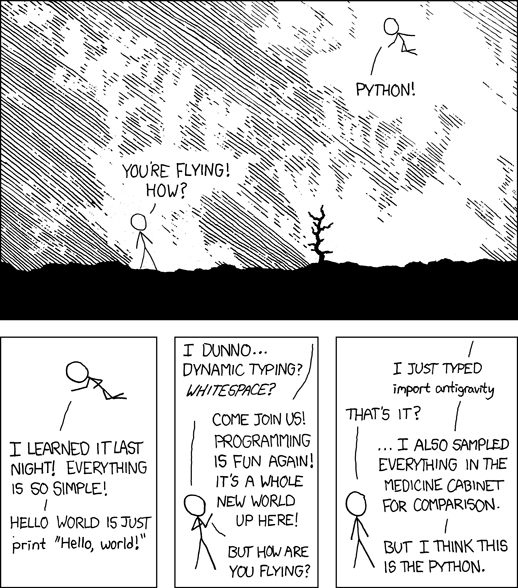
Here is a classic XKCD comic about Python to show what we are grabbing:
Step 1: Setting up our Robot
We need three special tools for this job: requests (to browse the web), bs4 / BeautifulSoup (to read the website’s code), and os (to create folders on your computer).
Code
import requests, os, bs4url ='https://xkcd.com'# The starting URLos.makedirs('xkcd', exist_ok=True) # Create a folder called 'xkcd' to store our images
Step 2: Fetching the Web Page
We will use a while loop to tell our robot to keep working. For this practice run, we will limit it to downloading just 5 comics so we don’t overload our network!
Code
comics_to_download =5count =0whilenot url.endswith('#') and count < comics_to_download:print(f'Downloading page {url}...') res = requests.get(url) res.raise_for_status() # This checks if the webpage actually loaded successfully# Translate the webpage text into readable HTML soup = bs4.BeautifulSoup(res.text, 'html.parser')
Step 3: Finding the Image
A web page is full of code. We need to tell our robot exactly where the comic is. If you right-click and “Inspect” the XKCD website, you will see the comic is always inside an HTML ID called comic, inside an img tag.
Code
# Locate the image using a CSS Selector comicElem = soup.select('#comic img')if comicElem == []:print('Could not find comic image.')else:# Extract the image source URL comicUrl ='https:'+ comicElem[0].get('src')print(f'Found image at {comicUrl}... Downloading!')# Download the actual image file res = requests.get(comicUrl) res.raise_for_status()
Step 4: Saving the File (Binary Data)
Images aren’t text; they are “binary” data (1s and 0s). We need to open a file in “write binary” (wb) mode and save the image in small chunks so we don’t crash our computer’s memory.
Code
# Create the file on your hard drive imageFile =open(os.path.join('xkcd', os.path.basename(comicUrl)), 'wb')# Save it in 100,000-byte chunksfor chunk in res.iter_content(100000): imageFile.write(chunk) imageFile.close()
Step 5: Traveling Back in Time
If we stop here, our robot will just download today’s comic over and over forever! We need to find the “Prev” (Previous) button on the webpage, grab its link, and tell our robot to go there next.
Code
# Find the "Previous" button link prevLink = soup.select('a[rel="prev"]')[0]# Update our main URL variable to the new page! url ='https://xkcd.com'+ prevLink.get('href') count +=1# Increase our counterprint('Done! Check the new /xkcd folder on your computer.')
🚀 Project Challenge: Make it Your Own!
You just built a fully functional web scraper. But XKCD is just the beginning. How can you turn this script into your own unique project?
Brainstorming Ideas: 1. The Wallpaper Bot: Change the URL and CSS selectors to point to a high-res photography site (like Unsplash) and automatically download new desktop wallpapers. 2. The Weather Watcher: Set up a scraper to download the daily radar map image from a weather website to create a time-lapse of a storm. 3. The Sports Stat Tracker: Instead of finding an img tag, search for a <table> tag on a sports website to download your favorite player’s statistics into a text file.
Your Turn: Pick a website you visit often. Right-click, select “Inspect”, and see if you can figure out the CSS selectors for the data you care about. Then, adapt the code above to grab it!